 Everyone not living in a cave has sometime lost important data and consequentially had their days of remorse and pulled hairs. Classically, a laptop with years of work is stolen or a hard drive with invaluable personal photo albums crashes unexpectedly. As in the flight industry, human errors are your biggest threat - more than once I have accidentally deleted precious files.
Our data is our life-collection of work and memories and as the days of pen and paper are being replaced by electronic data it is becoming the one most important property to hold account of. As 9/11 showed us, corporations survived huge losses of business documents but there is nothing to replace your years of email correspondence or personal photo albums. Not only is it an emotional loss but it will set you back by months as you try to pick up pace again after losing all your office data. Just the thought of losing my calendar data gives me the chill - loosing track of planned meetings and events for the next week would render me butt-naked!
Backup is no more
The traditional way of backing up data is to copy to other medias such as CDs, DVDs or external hard drives. This is how it all started before the Internet came and cloud-technologies and we were happy just to have a second copy of our data in case of disaster. There are many drawbacks with this old approach such as:- No media is safe when put up against time: DVDs and even high quality hard drives have an industry accepted failure rate of 1% meaning that your data will in time corrode.
- Modern data includes huge media files; high quality photos and videos and we are adding up more files every day. A DVD counts 4,5gbs - barely enough to hold 1.000 high quality photos. USB memory sticks are the modern DVDs and might be safer storage medias but they will also fail on you eventually.
- External hard drives are growing bigger every year but you want to store them far away from your desktop to ensure maximal security or they could easily take collateral damage if your desktop is hit. It might be a virus, hacker intrusion, water damage, fire... you have to place it far away, preferably at a friends house.
- As you are every day creating more data you will have to manually grab that hard drive, connect it and backup the new files, a process easily forgotten or just ignored in the long run.
- Eventually you will edit some old photo or document previously created and suddenly you have obsolete files on your backup hard drive. Unless you have a list of which files are updated since last backup you will have to backup your whole data collection. Or you could use software that does incremental backups but still, you will have to connect your backup drive to make it work. And know the inside and out of your software to be certain no mistakes are done.
The data-cloud is changing it all
There are plenty of problems with traditional backups but one emerging technology has the potential to relief your headache for once and for all... the data cloud. It's about moving your data from your local hard drive to online servers, virtually locked in databases which only you have access to. With the cloud, your data is available wherever you go.Dropbox is by now know by everyone and is one of the first examples of cloud-computing and replaced many USB memory sticks, symbolizing the old approach of moving data around, between different computers. Dropbox is now loosing ground again and the reason is the lack of an interface to work with the files it stores. The amazing developments of web-technologies (such as HTML5) is moving the power from local to online software, thus the term "web-applications". Google Docs exemplifies this trend; not only can you store whatever document on it's servers but you can also work with the data (e.g. work with 'word' documents or 'powerpoint' presentations) online and even shared with closed or open group of friends and colleges. Combine these features and you have "collaborative editing" where one or many can simultaneously work with the same document in real-time without worrying about multiple versions being emailed back and forth. I have previously written about the "online office" concept which is based on this development exactly and is the sole reason for my boosted productivity despite much more information to take care of.
So... not only do you need an online host for your data (there are now too many out there to keep count of and new services being born every day) but also you need front-ends to work with your data. One service for your office documents, one for your photos, another for music, yet another for videos... Now that's a lot of accounts and passwords to keep track of and add to that, you will have to have 100% trust in each and every service since they're literally taking care of your electronic life. We need simple solutions, preferably one key to all keyholes. And now the good news: this is indeed possible and that is exactly I am going to teach you in the rest of this post.
If you insist the old way
Only five years ago I would have told you a completely different story since there was no cloud then. I used to have a huge hard drive storing my most precious memories and had a clever software solution to synchronize my backup sets. In the end though, I was totally lost as some weeks my photo collection would grow by gigabytes and I accepted the fact that relocating my backup-drive between various physical locations even once a month was an impossible task to do. I tried USB sticks to make it a little easier but it was the same, I gave up. I installed an online Linux server in a safe location in my house and setup automatic and synchronized file transfers but felt highly vulnerable to catastrophes such as theft, fire or water leaks. I had just started considering using a friends' online server and synchronizing backups over FTP connection when Dropbox arrived, the rest you know.Today, all my important documents are in the cloud and my hard drive is empty besides some downloaded podcasts and vodcasts which are easily replaceable. Going online is a point of no return after which you will sleep free of all worries about loosing your data.
Going online
Now this might be the point were some might be skeptic so I would like to remind you that there are many alternatives out there but through years of experimenting I have found the Google applications to fit my preferences the best, please check my special Google post if you have doubts.Besides a few special applications (Pixlr and Crocodoc, that's all!) I am using the Google services for all my data. They're free, I trust Google and I am very satisfied with working their applications. The true power lies in having only one account (password) to take care of.
Introducing Google Drive (previously Docs)
To most people, Google Docs (GD) is a simple, online document editor with sharing and collaboration functions. The Google Apps have a common 1 gigabyte pool for your data and you can easily add more storage like $5 for 20gb/year (which is cheap, compared to other services).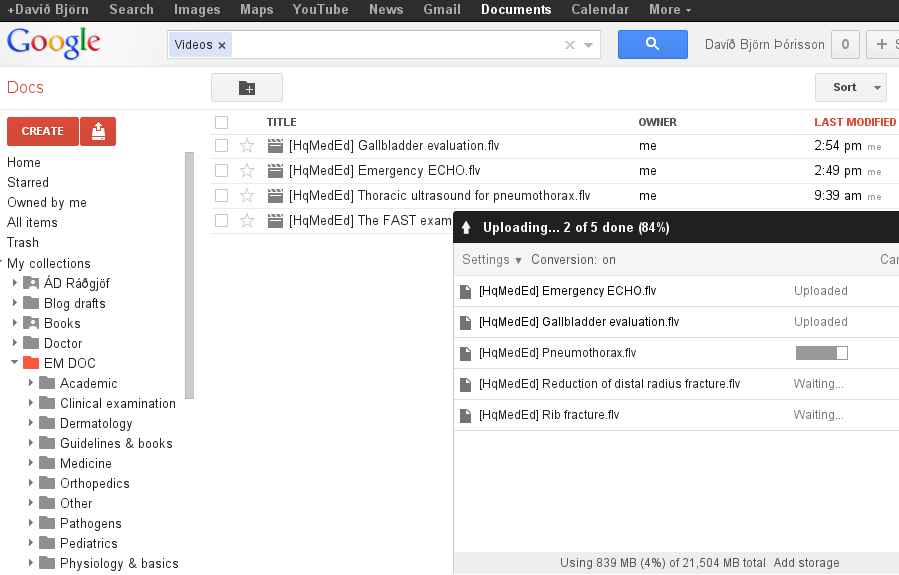 What many do not know is that GD actually allows you to upload whatever document type you wish, be it a 500mb video file, your mp3 collection or zip/rar archive to name a few examples. It literally stores whatever you throw at it (you can even upload a zip file and GD will allow you to browse it just as any folder). If you have Chrome you can even drag your files or folders to Google Docs and it takes care of the rest.
As your heap of files grow by thousands it becomes essential to organize them and GD's tagging features makes this a breeze. You can of course search your collection both from top-level or inside a tag ('folders' are known as 'collections' in GD), this way you can never loose a file in your online data-heap.
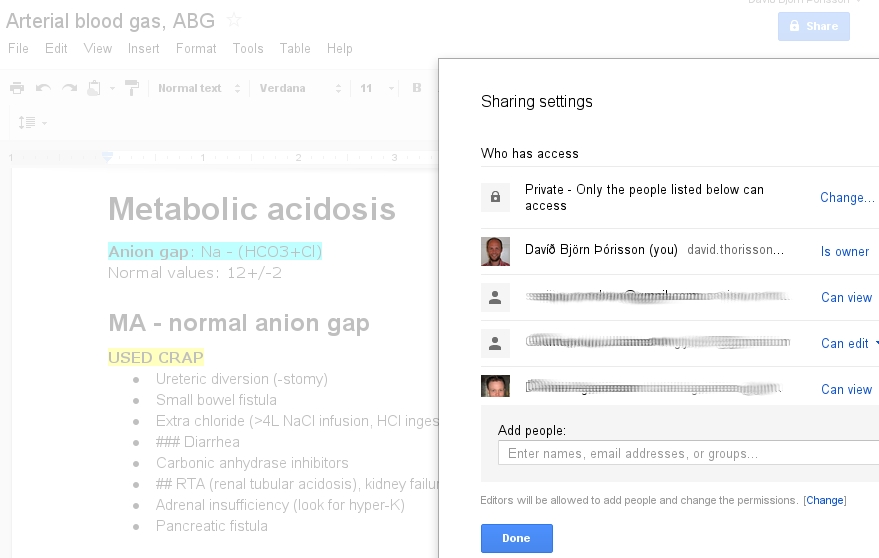 Sharing is GD's pride; every file (or collection) can be shared with one or many of your friends or even as a link to the whole Internet if you like. This way I upload my home-videos to a special folder (collection) and then send the link to my family who can either view them from there or download to their own computer (GD allows you to disable downloading if you only want files to be streamed).
Editable documents can not only be viewed but edited and while you share a document you can specify what restrictions each user has. The ABG document is private to the Internet but could also be shared openly so that anyone having the link can view or edit if I decide so.
Now this is technology we are used to these days but what makes GD unique is that the organizing and sharing functions apply to all files (and collections).
For most purposes, uploading through the web-browser is just fine but it doesn't quite meet my wish for synchronizing cloud based files with those stored locally on my hard drive (the Dropbox way). Google's highly anticipated Gdrive, rumored to be out early 2012, will change all this and provide the final functionality needed for a fully equipped online hard-drive.
Despite most software now being available through the Google Apps suite there are still some missing, requiring you to have your files on your computer for locally installed software. Adobe Photoshop and Microsoft Access files are some examples. Except for image/photo editors, online multimedia editors are still in their infancy and need local software. Downloading and uploading files back after edit is cumbersome, expect GDrive to fill this gap.
What GDrive will bring is is currently unknown but for basic backup purposes, Google Docs serves it's purpose quite well. If you wish for extended features and even editing you should consider alternative services and I will now finish this post with specific details on where to store the three multimedia types we commonly work with so that they are not only backed up but also easily viewed and manipulated.
Photos/images
What makes photos unique is that you want to organize them by years, themes and even people. Picasa used to be a standalone service but was bought by Google and as such is part of their application suite. Picasa is both a great local software for working with your photos but also an online front-end, the web-Picasa. Picasa can easily upload your photos to your online storage and smartly processes the uploaded images and always keeps a copy of the original photo file - the essential feature making it a backup tool.Picasa uses the common, above mentioned, 1GB storage pool but it doesn’t count images up to 800x800 pixels or videos <15 minutes in length. If you sign up for Google+ the photo limit goes up to 2048x2048 pixels. This has important implications; if your camera is set to store high quality photos, you will most likely have bigger sized photos and thus meet quota limitations.
My family album now counts about 250 gigabytes after 15 years of photographing digitally and most of the images are bigger than 2048x2048. Despite Google space being cheaper than most competitors I am not sure I am willing to pay $100 annually for the 400gb storage pool required for this massive amount of data even though it is probably the most secure way of keeping my digital memories away from unforeseen catastrophes, even though prices will most likely go down in the future. At least until having the synchronizing feature of GDrive, as a temporary solution, I will stick to old fashioned external hard drive backups here. In the meantime, I keep the newest (not HD backed up) files secure on my Dropbox account.
Finally, I find the web-based Picasa still a little clumsy (as opposed to the local software which is a 5 star product). It has all the features needed but it's user interface really needs to be modernized (it's been the same for years now), it's browsing and folder/collection features are ages behind Google Docs' approach. Until worked on, I am not ready to give all my digital memories to the online Picasa.
For other photos such as my collection of medical photos or saved images I use for my presentations, Picasa is my best friend - every single photo stored online for easy access and share functions.
Now all this is fine but what about advanced photo/image editing? Picasa is very very basic and you will not be able to do any photoshop effects with it. For this, you will either have to manipulate your files locally or you could try out before mentioned Pixlr. This is a gap in my backup plan - the files can only be stored on Google Docs for backup purposes; you will have to download and upload them to work with. Or you could sign up with Pixlr (for free) and use their online service. This should not be a problem unless you are editing your photos every day - in that case I suggest Dropbox and hope for GDrive to come anytime soon.
Videos and films
My video files are made up of home-videos and downloaded teaching modules such as vodcasts. The latter are for viewing purposes only and I like to be able to share them with colleges, perfect for storing in Google Docs.Home videos are different. They are precious and must not be lost, ever. Also, I would like to be able to work with them locally, making special clips for family or friends. Now many would think that Youtube is an excellent backup service for these but that is a fallacy; Youtube does not keep the original files and you cannot get back your files in their original formats (as with Picasa). Youtube is a sharing service, videos are played as streams. Even more, you are not guaranteed that your uploaded videos will stay forever. Youtube is strict about copyrights and can anytime erase your video if it has any violations (copyright background music might be enough to trigger the deleting machine) and if violated several times might risk your whole account.
This is very important:Youtube is NOT a backup service!! So what to do?
As said above, Picasa accepts video files as well as photos - voila! Even better - you have free unlimited storage for videos <15mins which should suite most of your home videos. Actually, as Picasa works with photos and short-videos in exactly the same way, I treat my home-videos the same. So again, waiting for GDrive and Picasa update but that's where I'm heading!
Finally, Youtube is not all bad. Actually, it is a great service for putting my edited clips online to share with the world. Youtube has some basic editing functions, enough for most of my needs for home-videos.
Music and audio files
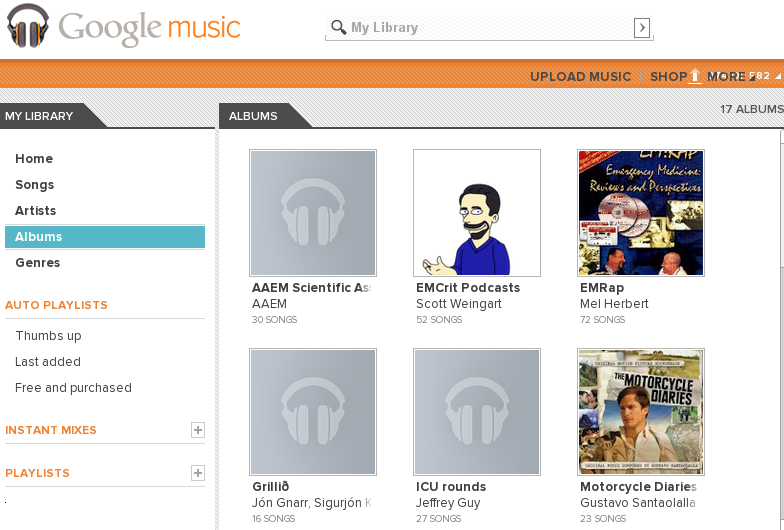 First of all, your mp3 (music) collection can easily be stored within Google Music which allows you to store 20.000 music files for free. Not only have I uploaded my music collection but also do I put my downloaded podcasts to Google Music so that I can listen to them from my mobile when I'm out jogging. After putting some work into tagging the podcast files, my collection is now easily browsed by authors, topics, production year etc.
Google Music provides a small software to install on your computer which then takes care of seamlessly uploading your collection.
Currently a podcast subscription feature is very much needed on Google Music (iTunes style), in the meantime I subscribe to them with RSS Reader, download files locally, tag and upload via GM's uploader tool. A little more work but I worth it as my podcast collection is now so easily accessed wherever I go.
Finally - what about passwords?
Passwords are also precious. Even more precious as they are the keys to all our data. Keeping account of all passwords today is a true first world problem, especially now that we need to make them very complicated to defeat hackers and viruses threatening our online presence.I have some of my less important passwords kept in a well hidden file in Google Docs - making them easily reachable wherever I am logged in or just from my Android phone. For those more important ones there is an excellent app for keeping them in an omnipresent but safe way. Check out my previous post about passwords and the importance of protecting your online data - now that you are uploading your electronic data to the cloud, you absolutely must know how to protect yourself from intrusion!
See also
- [Mens Health] Your life, in the clouds
Everyonë's going for the clouds! - [Wired] How Apple and Amazon Security Flaws Led to My Epic Hacking
A computer/IT geek looses all his data for good - but mostly blames himself. You data is only as secure as you decide.

