Showing posts with label it-tips. Show all posts

December 8, 2012

Irvine ultrasound videos

Maybe this is how Youtube got a concussion?If you have in some way been involved in ultrasound you surely haven't missed hearing Chris Fox mentioned and his awesome ultrasound lectures. The Ultrasound podcast has made him appear as a god-like figure and judging from the work he's been putting into ultrasound teachings, I think they're absolutely right. You will not find any better ultrasound video tutorials in the Milky way!
Not only is his work great but he has shared them all for free. They have been available on Youtube and iTunes. Youtube got a concussion recently and thinks they're infringing copyrights and iTunes is not for all. That leaves one final option for downloading the lectures directly to your computer - the torrent system.


First of all, using torrents to share content is 100% legal, it is sharing copyright content which is not. Using torrents you will download from multiple sources instead of a single one, giving you much faster download speeds. A whoppy 10 gigabyte collection like Chris' ultrasound videos thus can easily be downloaded in 30-60mins.

First you'll need a torrent software client. uTorrent has a good reputation and has all the features needed, it's free so go and install it.

Then you need the torrent file which has the description of the contents and where to look for it. You could google something like "irvine ultrasound torrent" but there are some other similiar torrent files out there which do not include the whole 10gb package. Also, there are many bad torrent websites forcing ads and even bloatware on your computer, thus I recommend www.isohunt.com which I find better than the others and have used for a while. You can also download the file directly from my Dropbox here
 http://dl.dropbox.com/u/484919/Ultrasound%20Video%20Lectures%202011-2012-Uni%20of%20cal.torrent

That's all there is to it. Open the torrent file in uTorrent and it takes care of the rest. Remember, torrents live only as long as those who have already downloaded continue sharing them. Please keep your connection open, you can set a max upload rate in the torrent program so that your Internet connection isn't clogged.

November 27, 2012

A few shoutouts for productivity

These are some very interesting discoveries I've stumbled upon the recent weeks which I think may be useful to you.

Stereomood

http://www.stereomood.com
Stereomood is one of many Internet radio stations, providing free, streamed music. What makes Stereomood different is that you can choose the music channel appropriate for your mood. Thus you can listen to ambient background music for paper-work, inspiring drummy tunes for an energetic hour or just dreamy instrumental music while taking a nap. If you suddenly feel like jumping to the "opposite mood" there is a button for that, for example when returning to work after napping!

The mood tags are collaboratively done by the listeners so they are pretty natural and music rightly tagged most of the time.

Everytime you hear a tune that impresses you more than others you can "favorite it" for playing later. For all music there's a link to buy the tune or whole CD if you like the artist.

Finally, there's a smartphone app for both iPhone and Android.

TalkTyper

http://talktyper.com
Image from http://paulhami.edublogs.org Here is a little gem that caught me by surprise as I didn't realise how easy it has become to translate speech to text now a days. Well, TalkTyper, does that exactly and it does it amazingly well. As you talk to the microphone sentences are converted to text almost instantly and collected in a mini-notepad.

You can select input language and all major languages are provided for and I expect the list to grow quickly as the web is in the background using a Google based speech to speech server. On a technical level, it is a built in Chrome feature (version 11 and above) being decorated with additional tools.

An excellent productivity tool worth knowing about!

Online XPS to PDF converter

http://xps2pdf.co.uk
Internet Explorer is notoriously stubborn, refusing to implement features users need. Printing a document to PDF file is one such feature, whereas Chrome allows you to just select "Save as PDF" as target printer. Explorer has a similiar feature but uses a Microsoft only technology called XPS instead of PDF. And most institutions force us to use Explorer. Thus, an online XPS to PDF converting tool was very much welcomed in my productivity link/tool collection.

Pixlr

http://pixlr.com
Image from http://www.thegeeksclub.comThis is the web-application of the century and should be topmost in this list but I've mentioned it already a few times. It's the one web-app I use almost everyday and is indespinsible while working with images or photos. It has all of Photoshop's most used features, it's free, it can sync your images with Google Drive or Picasa... its' totally amazing. If you haven't used it, you should now!

Finally,  a few IT tips

I love keyboard shortcuts as they make computer life so much easier - these are the latest I've discovered and definitely worth sharing!

Middle-mouse-clicking a link in your web-browser (Chrome and Firefox at least) will open it in a new tab. Also, middle-clicking an open tab closes it. So lovely!

While doing a Google search, you can anytime start writing again if you want to change your search - just start typing. No need to move mouse pointer to input field!

Impatient while scanning a Youtube video? There's a button for changing playback speed, you can play up to 2x times faster, great for example to quickly browse through a ultrasound tutorial you've seen before. Notice this works only in the HTML5 player, switch here if you're still using Flash.

October 23, 2012

Trying to grab that text? Use OCR!

Copy & paste - a docs best friend! Every now and then you will encounter situations where you can't use the copy & paste technique. Indispencible in the hospital to quickly write consultation texts, letters etc. - nothing is more frustrating as when the medical record system (in an hilarious attempt to stop data theft) cripples the copy/paste function.

Other scenarious where you might need to quickly get some text in electronic format is that when you get a medical letter from a foreign patient. It has happened to me a several times and once in the middle of the night where the patient had acute dyspnea.

Here is what you need to do to do online OCR, "Optical Character Recognition"

1. Convert the text to image

If the text is on your computer you can use any screen grab app to just capture a screen image while having the text open. A favorite of mine is Lightscreen, a portable app thus allowing you to install on USB drive or within your local folder without administration rights.

Text on paper needs to be scanned of course - easily done in modern offices. Make sure the new image is in high quality, PNG is a lossless (no pixels lost while compressing) format highly recommended.

2. Remove patient identifying information

As we are going to use an online application we need to delete any information that might identify the patient. Not that I distrust the website used, just a good habit "just in case".
Open www.pixlr.com - a free, online Photoshop mimic where you can easily manipulate your new image. Just remember to save it back to PNG format agin.

3. Convert to text

So here's the magic ingredient in the cake; www.onlineocr.net is an online tool which takes an image and converts all text it can find to electronic format. Why this one stands out from the other lots out there is that you can even select which language to use! Now that wasn't so difficult!


And now you can do what you want with your text. If you're translating a medical letter just take it to Google translate.

February 15, 2012

Gotta love these keyboard shortcuts - speed through Google search

I love fancy keyboard shortcuts. They help me keep my hands on the keyboard and just focus on writing. This is one just incredibly powerful every Googler should know of;

When you've entered a search term on Google search, instead of moving the mouse pointer back to the input field and type more to refine your search, you can just start typing and voila!

There's even more I didn't know of; pressing enter and then tab  selects the first result and you can move up and down through the results with up & down arrows.


Oh my oh my!

November 17, 2011

IT for emergency physicians - the esoteric talk

In september 2011 I was at the 6th MEMC, an international emergency medicine conference held in the small greek island of Kos - the birthplace of Hippocrates. I was given the opportunity to talk about my IT experiences in my life as an physician.

The thought of a first first time talk on international ground was comfortably stressful until the day before when I decided a trip to an Irish karaoke-bar would stabilize my nerves. And it did but the irish bartender spotted my Acchiles' heel and managed to sneek more beer on my table than I had planned for, fiddling most of my cortical senses and spinal reflexes the day after.

There was a silent nervous breakdown going on and standing in front of tens of ED docs, masters of spotting obfuscate symptoms, it was a little hard to give "the perfect talk". A faux pas for martians even. Fortunately the content of my talk was of more interest than performance and it seemed the audience forgave me stuttering words with a mixture of esoteric swedish, icelandic, english-wannabe pronunciation. I even had a short-lived crowd gathering afterwards asking for my name tag and email which I like to think was a positive sign.


And now, I give to you a "home edited" version of the same talk, with the same esoteric pronunciation for you only to feel the atmosphere of the real talk...

Keep in mind I was limited to 20 minutes and to dissect a broad topic as IT in such a short time would be utterly impossible. Instead, I give you a few eye-openers and ideas for you to step onto the IT-wagon yourself and I welcome you to follow my blog for the details.

Please feel free to ask any questions you have in the comments and I will happily reply. If you find an urge to discuss with me karaoke as stress-relief therapy, you are welcome to contact me - you will find contact info in the introduction post.


IT for emergency physicians from David Thorisson on Vimeo.

October 26, 2011

Your calcluator always at hand

I've previously talked ranted about Google's web-browser Chrome and why you should master it to increase your productivity. Now here is a short tip I just picked up which will certainly save you time and mouse clicks while calculating your antibiotic dosing or critical care vital signs...
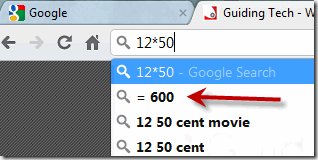
Google search is so much more than just a brainless search motor, it has built in special functions providing for semantic search (in short, semantic in this aspect means more meaningful) results, just try for example looking up your flight number, "weather xxx" for an inine weather forecast, "define:xxx" for a quick explanation of a word and it's synonyms... you get the catch. There's also a calculator so that you can throw any numeric equation at it you wish to have crunched.

The real magic lies in Chrome's address bar, as I've previously mentioned it has some amazing features making it much more than just a browser. This is what I'm talking about:

Thanks Guidingtech for teaching me this trix (well worth reading too, you can never know too much about your browser, the heart and lungs of your computer)!

January 22, 2011

Google custom search to search all your blogs and resources

Google custom search in action Most doctors have a set of favorite websites they have become familiar with and prefer to search when immersing in a clinical topic or issue. Medscape's Emedicine is one of these, I find my self repeatedly Googling a topic and adding "emedicine" to search their site specifically. As most of you have found out, Googling medical topics commonly leads us to completely irrelevant sites like patient information or even veterinary sites. Just try 'ileus' - you'll get tons of recommendations on how to treat a horse with no bowel sounds!
While everyone of us searches the web for clinical information every day or so I am amazed to see how little physicians bother about the actual search tools or using advanced search queries since these can significantly alter the results in a positive way. It's pretty much like scavenging the ocean floor when looking for birds.

Google has a special "site:" operator to search a particular webisite (URL) or even part of the site only. This will give us even better results than the above mentioned query;
 "ileus site:emedicine.medscape.com"

will return results only from Emedicine. This way you can use the power of the Google search engine rather than the sites' own.

You can actually add more site:... operators to search a group of websites but that's making things a bit complicated isn't it? So what if you could search a predefined group of sites only?
Well, Google custom search is exactly that and even more. It's one of the excellent Google tools and as such free and uses your Google account to store your predefined sets of selected searches. Yes, you can define not only one set but as many as you wish. I have been using a "medical community" group where I search my favourite emergency medicine blogs (the 'blogosphere'), perfect for finding my colleges' personal experience and opinions or even updates on clinical matters. Then I have a "basic medical resources" where I have included Emedicine, "Merck manual" and similar webs when I want to do some "back to basics" digging into the medical knowledge.

October 13, 2010

Subscribe to clinical pearls

There are all kinds of pearls floating around on the ocean floor of the Internet but we want those that are so tiny small that we can read them at a glance but still feel like full like after a Christmas evening meal. So small actually that we can have them as email. Luckily for us there are colleges out there who think the same and have made these pearls.

Here are my all time favorites, the ones I've hanged on to:
  • Educational Pearls from University of Maryland School of Medicine
    Since 2007 the Maryland EPs (and again Amal Mattu is on-board, amazing how all the best EM stuff on the Net in the end winds up to Mr. Mattu!) have made one daily clinical pearl for a broad selection of EM topics. Short as skirts, information-packed as a sunny italian beach - it's a joy to be a subscriber to. And if you as me start the subscription but feel like you've missed out - you can even browse through their archives. Amazing work and will most likely go to the history books!
  • EMedHome
    This is a respectable website with great emergency physicians onboard such as Peter Rosen and Amal Mattu just to mention a few. Not surprisingly then their content is of highest quality. EMedHome is actually a multi-functional website with podcasts and full text articles on updates on hot emergency medicine topics and you can read more about them in my resources list.
    As a member you can have emailed to you daily clinical question (with answer) and weekly clinical pearl, the last one I got was about 3 critical ECG features to differentiate anterior ischemia from posterior MI, a real case we had just days ago!

When I started this blogpost I thought I would be mentioning at least 5-6 of various sources. After digging trough my previous and current subscriptions I found some of my subscriptions are more like packed newsletters (like Journal Watch's high quality journal updates or Medscape's various and detailed daily/weekly email subscriptions) than tiny clinical pearls.

So email pearls aren't so many after all but my preference is quality, not quantity. My inbox is as fragile as my cornea and everything that goes into it is there for a good reason. Email overload drains your energy faster than the Krebs cycle. That's why RSS is an extraordinary solution and I am amazed so often I find out my colleges don't what what it is. Try to see RSS as "passive email", something that doesn't require your immediate attention but waits for you until you are ready. Like a newspaper actually - after all your RSS list is a compilation of headlines from all your favorite sources like blogs, newsletters or even academic journals. RSS is as essential to surviving the 21th century information overload as a pocket knife is in the jungle of Amazon. Lifeinthefastlane has an excellent article, "RSS for dummies" worth checking out.

Here are my favorite RSS clinical pearls:
  • Michelle Lin has a wonderful "tricks of the trade" series on her blog with pearls that you can immediately take home to your clinical work.
  • If you accept Q/A form as a clinical pearl, a few Detroit EPs have made this fantastic blog with a weekly clinical question which then i answered a few days later. They even accept answers with email and have a score board for you to tickle you ambitions. The questions are very applicable.

This will be all folks. They aren't many but they sure are good. Please let me know if you have any more to add to this list!

September 17, 2010

Crocodoc- for your PDF collection

An electronic (paperless) office is key to success in a world overloaded with information. Using the data cloud you can have it accessible at all times and everywhere - at home, at work and even from your smartphone while commuting. For a doctor who is keen to constantly learn more and stay up-to-date, a mobile office is it. Actually a mobile office is much more than putting away the papers, it's also the concept of having your office tools at hand, everywhere and anytime. Contacts, calendar, email, chat... the list goes on. I will soon bring you a big and juicy post about my personal configuration which I have developed for years. For now I will tell you about one particular part of my e-office, how I manage my PDF documents.

For most documents (images, text files, notes...) I use Google docs and actually Google apps is the base for my e-office. Although Google docs can store PDF files and has a very nice online viewer there is a crucial tool missing, the ability to highlight text and write notes.

Every doctor has a collection of memorable journal articles which they have read thoroughly and want to keep for future reference. If you are as me you strive to have all reference books in electronic format. Some will be accessible online (Rosens Emergency Medicine is available online at MdConsult for example) only but others downloadable as PDF files. Just as you've dried a few kilos of marker pens while doing your stud med years you will want to highlight your PDF collection as well. There are nice applications for this, my favorite one being the free and excellent Foxit pdf reader. But it's not an online web-application (actually, it is a "desktop application") and so doesn't fit into my mobile/online office configuration. I don't want to install it on the 10-15 different computers I have access to at work and then move the PDF files between work/home/wherever-I-am... you must see it will end with a disaster.

Earlier this summer an amazing web application appeared on my radar for which I have fallen in love with. The name is Crocodoc. With a (free) login you can upload your PDF file and store it on their server for later access. It can even take an address of a web page and convert it to PDF. Once you got it there it will open up in a special viewer where you have all the highlighting and commenting tools you ever need. Now you will start to understand why I'd love to have Tintinallis Emergency medicine in a PDF file!

Crocodoc in action And so, my real physical office is completely free of papers and I can access my PDF collection from anywhere, with my highlights and comments just as I had wished for. An amazing tool!

While we are at it there is another online web-application I'd like to mention which works with PDF files. PDF escape is the only online PDF app I am aware of that allows you to upload a PDF file and then edit it's text content and fill in forms. I have used it a lot to erase patient IDs from ECGs I want to keep. It's free and let's hope it stays free.

I would be surprised if Google doesn't advance it's PDF features in the very future, making Google Docs the ultimate office tool. Actually I really hope so since I want to have as much as possible in one place.

September 8, 2010

Video-learn 20-50% faster!

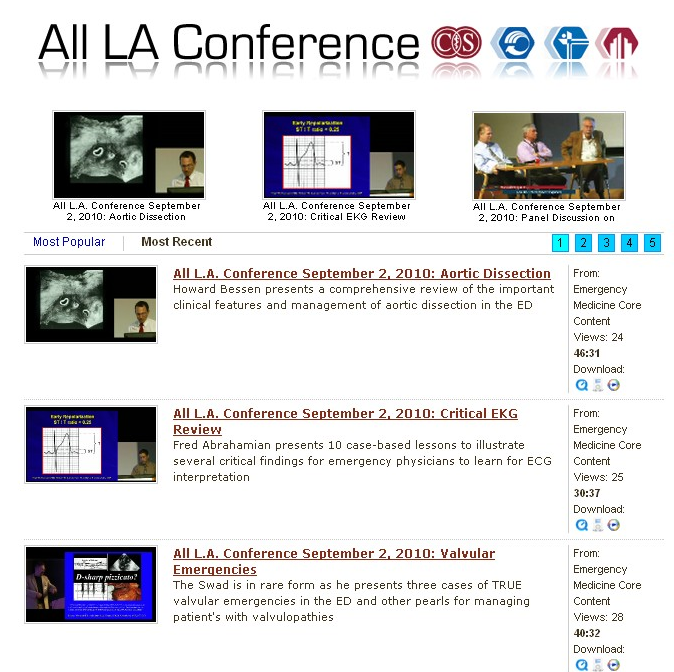
All L.A. conference has it's videos online for free I just love sucking in every new gadget, website or tip that allows me to learn emergency medicine faster than ever before. I believe e-learning is the field where we have gained the most from information technology and as such I believe that in year 2010 we are much better (informed) doctors than only 10 years ago.
I have recently discovered the wonderful world of video lectures in emergency medicine and it turns out there is amazing quality stuff out there which I plan to summarize very soon in a special blog post. It is just amazing to be able to sit in my living room or other convenient places and watch lectures about aorta dissection, ECG in pulmonary embolism etc. - just as if I was there. Never before have I wished as much to have consiptation - an excuse to sit in the WC with my Android all day long! As said, I will be back with those video sites but first this one small tip which will speed up your video watching by 20-50%.

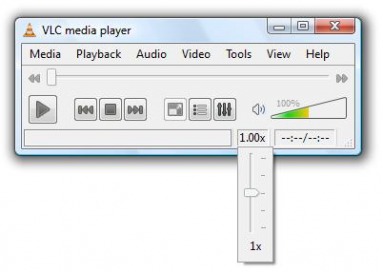
VLC player in action VLC player is an amazing (free) software which has the goal of "playing everything you hit it with". It is not the prettiest but it a Swiss army knife of video players. I recently discovered a "play speed" feature which to my amazement worked just perfect since usually the audio will be too distorted to enjoy. This very probably can be done on other video players as well but I like VLC's way of allowing you to fine tune the playback speed, it's not only in steps of 50%, 150%, 200% etc but everything there between.
Then you can even jump back and forth through the video with keyboard shortcuts, making jumps in steps of a second, 3 secs, 10 sec or whatever you like. With this level of controls at your fingertips it is easy to step back when you feel you missed out some important part of the lecture. Also a great tool when you want to re-watch some lecture you have seen before for the sake of understanding it better.


This little tip has made it much easier for me to browse through my collection of 2-300 of amazing emergency medicine lectures I want to digest in the winter months (totalling to about 150 hours of video!).

September 7, 2010

Using the RSS power of Blogger (Blogspot)

RSS is THE technology to stay up to date in the blogsphere. Here is a quick tip for you bloggers out there who want to use RSS to the extreme.
Everyone knows that all new posts can be subscribed to by the general RSS feed. The path to this feed is easy to find from the "subscribe to posts" link which for my blog is:
 http://pricelesselectricalactivity.blogspot.com/feeds/posts/default

In Blogger settings you can prefer to have an email sent whenever a new comment is written. You might want to have it in your RSS reader instead - or even create a gadget to stream it in some custom way, the possibilities are endless. The path to the RSS comments feed is:
 http://pricelesselectricalactivity.blogspot.com/feeds/comments/default

or if you want to watch comments for a specific post:
http://pricelesselectricalactivity.blogspot.com/feeds/6234880912964361746/comments/default
Those numbers there are the postID, which is a unique identification number for each individual post and is found in the address bar when you edit the post (actually you can also find your blog ID in the very same address).
Blogger and Blogspot are to the user the same though under the hood, Blogger is a free publishing platform, while Blogspot is a free domain service provider. If you are craving for the details you can read more about it here.
In some blogs you may get overloaded with posts that you do not care about at all and you just want to read about a particular subject. Say, for example, that you only want to subscribe to my IT-tips which I tag specifically. Well it turns out that Blogger can actually give you feeds by tags, you only need to dig up the URL which is well hidden under the turf. The URL then is:
 http://www.blogger.com/feeds/[yourblogID]/posts/[feedType]/-/[labelName]

Hmm that wasn't as easy! Well you know already how to find the [yourblogID] from the adress bar and to make it simple we use "summary" for [feedType].  So a RSS feed for my IT-tips would be:
  http://www.blogger.com/feeds/2248583521093048479/posts/summary/-/it-tips


OK that's all. There are many more options for your RSS feeds such as how much text they should include, how many items etc. and if you want to dwell into this there is more to read right here:
http://www.bloggerbuster.com/2007/09/all-about-blog-feeds-part-1.html

September 1, 2010

What's the date?

Commonly I look over the shoulders of my colleges and see them taking unnecessarily many steps to do simple things. One such is the task of finding out what date it is.
Everyone knows how to find the clock, it's located in either bottom or top right corner on most modern computers. Well what you maybe didn't know is that if you take your mouse pointer and move it over that clock, the date will pop up instantly (don't click the mouse, just move it there).

That's all folks!

August 11, 2010

Collaborative editing

Are you still use Microsoft Word for editing documents? Are you emailing them to colleges for review or further editing? Are you having a headache because of all the various revisions and total loss of oversight of your documents? If you just answered yes, you've totally missed the IT train. And wasting time and energy.

Collaborative editing is the concept of viewing/editing document which is kept on an online server (this is cloud computing at its best). Having a document online has many priveleges like
  • you can access your documents anytime from anywhere; throw your floppies, throw your USB sticks
  • you can invite others to view or even edit the document, also from anywhere
  • you never ever have to worry about backups
  • most servers will allow revision history which allows you to look back and see how that document looked like, say 6 months ago
Google docs (Google is sooooo much more than Gmail and web search!) is one of many different collaborative editors out there. It has many advanced features, actually so many that I've replaced my MS Office setup completely and all my documents now exist in Google Docs. I will very probably write a seperate post about this some day, more than one, since Google docs is a revolution for it self. The main drawback using Google docs is that invited editors require a Google account for accessing the document to be edited and I don't have the time or energy to persuade my colleges to convert to Google (as much as I'd wanted it). Sometimes there's these small documents I want to share and edit collaboratively and I want minimal effort.
Actually Google wave (which was just closed down) was the ultimate collaborative editing tool and many have said it was years ahead of the world.
Let me introduce to you Titanpad. In short, you create a text document online without having to login. The link (URL) then is the key and you keep it in a good place. You don't need to save or do anything other than just keeping the link. You can then exit your browser and enter that link at home and voila, you're editing the same document. Send the link to your friends by email and voila they're instantly editing your document.

This is all but man isn't it beautiful - can't you already see the endless possibilites!!! Try it out - here is a short document I just created:
http://titanpad.com/QjcpOFGQxL